

An administrator password can be watched over your shoulder, guessed, or pulled from a breach of some entirely different service. Two-factor authentication adds a second step to the password — a code from your phone or a fingerprint — that an attacker does not have even when they know the password. Joomla has supported it since version 4.2 without any add-on; the screenshots in this guide are from Joomla 5. Setup takes five minutes and this guide walks you through it step by step.
- Why — Without a second step, one leaked password is enough to take over the website. With it, an attacker gets no further even when they know the password.
- How long it takes — Five minutes, once. After that, every login asks for one extra six-digit code or a touch of your finger.
- What you need — A phone with an authenticator app (the table below says which one fits which system) and a safe place for your backup codes.
Which method to choose
Joomla offers two methods. You can have both set up at the same time — at login you pick the one you want to use.
Verification code (TOTP)
An app on your phone generates a six-digit code every 30 seconds, which you type in at login. Works on any computer and in any browser.
For everyone — the main method. The only one that behaves the same on a Mac, on Windows, in Safari and in Chrome.
Passkey (WebAuthn)
Instead of a code you confirm the login with a fingerprint, Face ID or Windows Hello. The key is stored on a specific device or in its keychain.
As a second, more convenient method on the computer you log in from most often. Not as the only one — it does not work on somebody else's computer.
Our recommendation
Set up a verification code and store the backup codes. If you like, add a passkey on your main computer — logging in is then a single touch, and if the device fails, the code from your phone is still there.
Where to keep the codes
| You have | Use |
|---|---|
| iPhone / Mac | Passwords — Apple's app, built into the system. Codes sync through iCloud between your iPhone and Mac, and Safari fills them in at login by itself. In Chrome on a Mac you copy the code from your phone or from the Passwords app. |
| Android / Windows | Google Authenticator (Android and iPhone) or Microsoft Authenticator. In Google Authenticator, turn on backup to your Google account — otherwise losing the phone means losing the codes. |
| Password manager (1Password, Bitwarden…) | Handles verification codes too and fills them in together with the password. Convenient, but the password and the code then live in one place — so the password manager needs a strong master password. |
It does not matter which app you choose — the QR code is the same for all of them.
Where the methods are set up
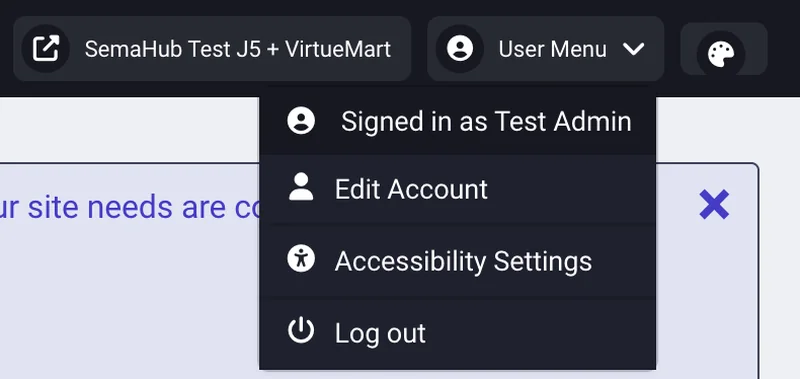
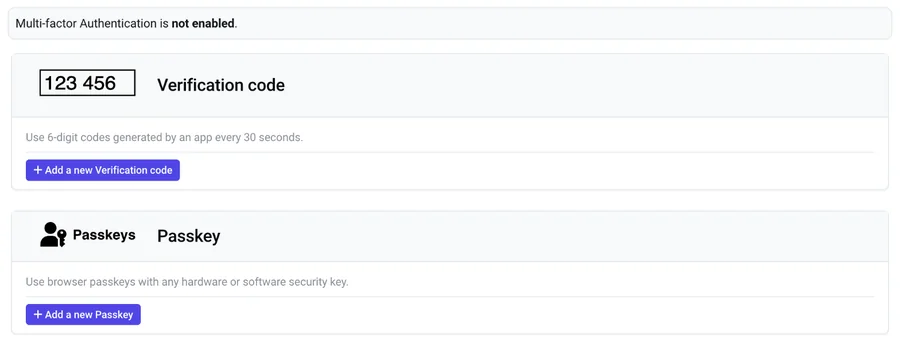
Log in to the website administration (the address ends in /administrator). In the top right, open the User Menu and choose Edit Account. In the form that opens, switch to the Multi-factor Authentication tab. This works for every logged-in user, even without permission to manage other accounts.
Setting up the verification code
- Install an app from the table above. On an iPhone or Mac you already have one — it is called Passwords.
- In the list of methods, click Add a new Verification code. Leave the title as it is, or type something like “Phone” — it is only a label in the list.
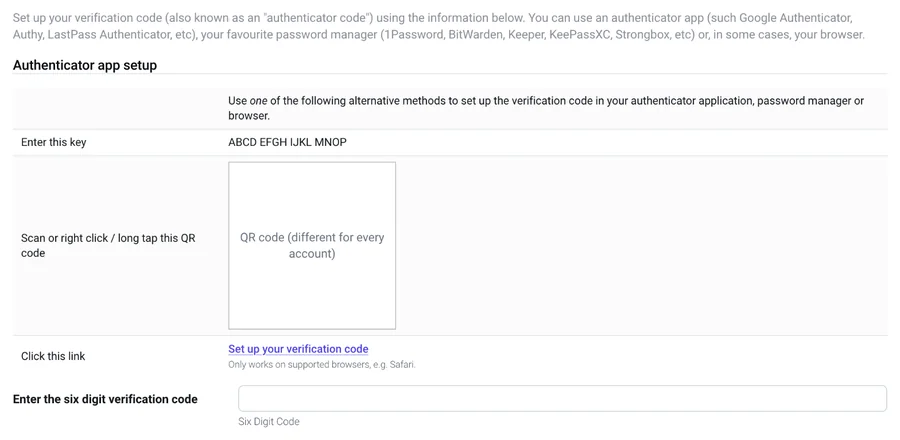
- Scan the QR code with the app on your phone:
- Passwords (Apple): open Passwords → pick the entry with the website password (or create a new one) → Set Up Verification Code → Scan QR Code. On a Mac you can right-click the QR code instead and choose Set Up Verification Code.
- Google / Microsoft Authenticator: the + button → Scan a QR code.
- Without a camera: type the key shown above the QR code into the app.
- The app starts showing a six-digit code. Type it into the “Enter the six digit verification code” field and click Save (the tick icon in the top left). This is how Joomla checks that the phone is paired correctly.
- After saving, the backup codes appear — ten one-time codes for the day you lose or replace your phone. Store them right away: in your password manager, or print them and keep them with your documents. Not in a text file on the computer — lose the computer and you lose the codes too.
- Log out and log in again. After the password, a field for the code appears — enter the current code from the app. Done.
A passkey as the second method
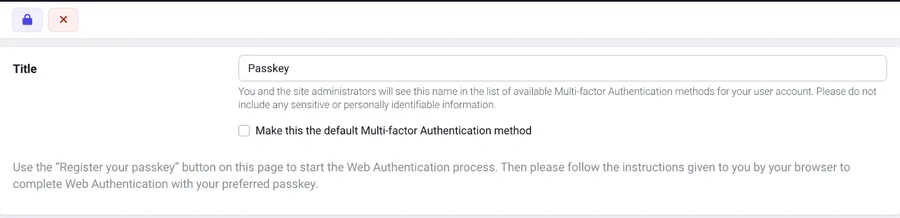
- In the list of methods, click Add a new Passkey. Name the title after the device, e.g. “MacBook” or “Office Windows” — you will end up with several.
- Click the lock icon in the top left (Register). The browser asks where to store the key — confirm with Touch ID / Face ID (Apple), Windows Hello (PIN or fingerprint) or a hardware key. On Windows in Chrome the key can also be stored on an iPhone through a QR code the browser shows.
- Once confirmed, the method is saved. At the next login you choose between the code and the passkey.
Keep in mind
A passkey is tied to the device (or to the Apple keychain / Google account). On a computer where you do not have it, you can only log in with the verification code — which is why the code should always be set up first.
When something goes wrong
| Situation | Solution |
|---|---|
| The code from the app is rejected | Most often the phone's clock is off. Turn on automatic time setting on the phone. A code is valid for 30 seconds — enter the one currently displayed. |
| New phone | Passwords (Apple) and Google Authenticator with backup turned on restore themselves. Otherwise log in with a backup code, delete the old method and set up a new one. |
| Lost phone, no backup codes | Write to the website administrator — they remove the method from your account and you set it up again. You cannot remove it yourself, and that is intentional. |
| I want to remove or change a method | Edit Account → Multi-factor Authentication → Delete next to the method. Once the grace period is over, an account without any method is not let into the administration. |
For website administrators
Enable only the strong methods
System → Plugins → filter multifactorauth: enable Verification Code (TOTP) and Passkey (WebAuthn), disable Email, YubiKey and Fixed Code. The e-mail code is weak — whoever controls the mailbox has both factors.
Enforcing it for groups
The Joomla core does not enforce the second step. On the websites we look after, our Sema MFA plugin handles it: first the Warn mode (a notice with a link to the settings), then after a grace period Enforce, or an Enforce from date.
Who has no method yet
Visible in the #__user_mfa table — an account with no row (apart from backup codes) has no second step. The Sema MFA plugin shows this overview right in the administration.
Locked-out user
Users → the account → Multi-factor Authentication tab → delete their methods. The user sets them up again at the next login.
Want us to set it up?
On the websites we manage, we enable two-factor authentication and enforce it for every administrator account. If you manage the website yourself and get stuck, write to us through the contact form — we will advise you, or set it up for you. The other services are listed on the Support page.