
A VirtueMart payment plugin that shows the customer a QR code for a bank transfer (the Czech QR Platba / SPAYD format) on the thank-you page, in the order detail and in the confirmation e-mail. Optionally it downloads incoming payments from Fio banka, matches them to orders by variable symbol and marks the order as paid by itself.
| Joomla | VirtueMart | PHP | Current version |
|---|---|---|---|
| 4.x, 5.x | 4.x | 8.1+ | 1.0.9 |
- Requirements
- Installation
- VirtueMart settings
- Creating the payment method
- Account and QR code
- Bank and payment verification
- Fio API token
- Webcron
- Customer display, appearance and fees
- How customers pay
- Payment matching
- Payments in the order administration
- E-mail notifications
- Updates and uninstallation
- Troubleshooting
1. Requirements
- Joomla 4.x or 5.x (VirtueMart does not support Joomla 6 yet)
- VirtueMart 4
- PHP 8.1 or newer with the
gd(QR image in e-mails) andopenssl(bank token encryption) extensions - A bank account in CZK that customers pay to
- For automatic payment verification: an account with Fio banka and a way to run a cron job (URL call) on your hosting
Without a Fio account the plugin works in No verification mode: the customer gets the QR code and you confirm payments manually with a button in the order.
2. Installation
- Download
plg_vmpayment_semaqr-X.Y.Z.zipfrom SemaHub (Semakin.cz). - In the Joomla administration open System > Install > Extensions and upload the ZIP.
- Open System > Manage > Plugins, search for SemaQR for VirtueMart and enable it. A fresh installation is disabled.
The installer creates two tables of its own: #__sema_qrpay_transactions (payments downloaded from the bank) and #__sema_qrpay_sync_state (download state). VirtueMart stores the payment data of orders in its table #__virtuemart_payment_plg_semaqr.
3. VirtueMart settings
Two things in VirtueMart > Configuration > Shop that the plugin needs to work fully:
- The safe path must be set. VirtueMart encrypts the Fio token with a key from it. If it is missing, the payment method form warns you and the token is stored unencrypted.
- The Status after order creation from the payment method (default U – Confirmed by shopper) must be among the statuses that send an e-mail to the customer. Otherwise the customer does not receive the e-mail with the QR code.
The default status is U on purpose, not P – Pending: in VirtueMart’s default configuration P is not among the statuses that e-mail the customer.
4. Creating the payment method
- Open VirtueMart > Payment Methods > New.
- Enter a name (e.g. QR bank transfer), choose SemaQR for VirtueMart as the Payment Method and save.
- After saving, a Configuration tab with the plugin parameters appears. Fill them in according to the following chapters and save again.
One method = one account. For another account or currency (e.g. a EUR account for Slovakia) create another SemaQR method. Restrictions by country and order amount are set in VirtueMart as usual, on the method tab.
5. Account and QR code
| Field | Default | Meaning |
|---|---|---|
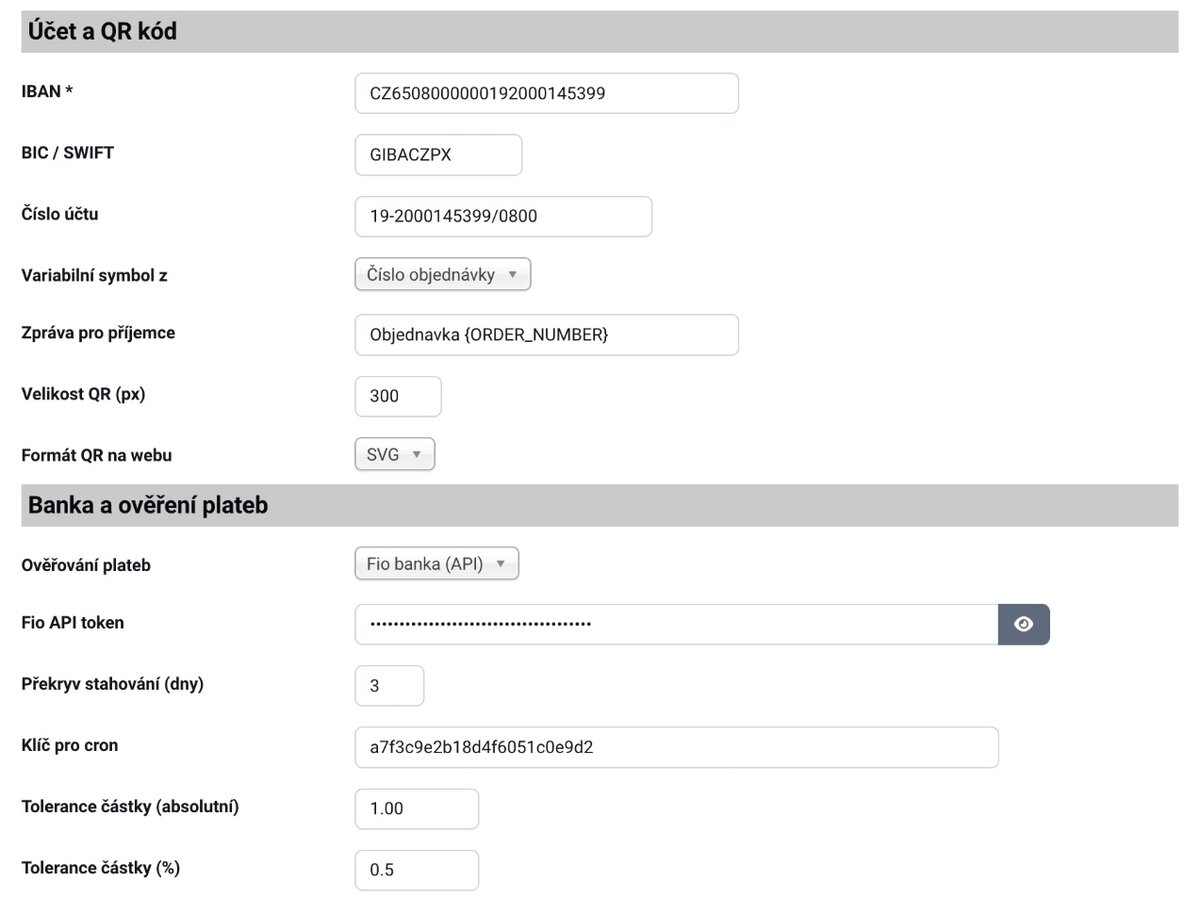
| IBAN | – | Required. The account customers pay to. The checksum is validated; with an invalid IBAN the method is hidden in the cart and the administration shows a warning. |
| BIC / SWIFT | – | Optional. Appended to the IBAN in the QR code. |
| Account number | – | Domestic format (e.g. 2600123456/2010) for customers who enter the payment manually. |
| Allowed currencies | CZK only | The method is offered only for purchases in these currencies. |
| Variable symbol from | Order number | Order number or order ID. Digits only, at most the last 10. If the order number contains no digits, the order ID is used. |
| Message for recipient | Objednavka {ORDER_NUMBER} | Placeholders {ORDER_NUMBER} and {SHOP_NAME}. Encoded in the QR code without diacritics, upper case, max. 60 characters. |
| QR size (px) | 300 | Side length of the QR code on the website and in e-mails. |
| QR format on website | SVG | SVG is sharp and inlined in the page. E-mails always use PNG. |
The variable symbol is taken from the order number. If your order numbers contain letters (VirtueMart’s default format), choose Order ID or switch to numeric order numbers – the customer then sees the same number on the statement as in the e-mail.
6. Bank and payment verification
| Field | Default | Meaning |
|---|---|---|
| Payment verification | No verification | No verification = QR code only, you change the order status manually. Fio banka (API) = automatic matching. Test data is for development only and works only with debug mode enabled. |
| Fio API token | – | Read-only token, see chapter 7. |
| Fetch overlap (days) | 3 | How many days before the last successful fetch are downloaded again. Protects against payments the bank books with a delay. |
| Cron key | generated | Secret key in the webcron URL, at least 32 characters. It is generated when the form is opened and takes effect once the method is saved. |
| Amount tolerance (absolute) | 1.00 | Difference still treated as an exact payment. |
| Amount tolerance (%) | 0.5 | Percentage of the order total. The larger of the two tolerances applies. |
| Status after order creation | U – Confirmed by shopper | Status in which the order awaits payment. It must send an e-mail to the customer (chapter 3). |
| Status when paid | C – Confirmed | Set when a full payment is matched. If VirtueMart issues an invoice for this status, it does so. |
| Status when underpaid | U – Confirmed by shopper | Set when a lower amount arrives. |
| Notification e-mail | shop e-mail | Where error notices and payments needing review are sent. |
| Daily digest of unmatched payments | Yes | A daily list of incoming payments that could not be matched to an order. |
| Alert after N errors | 3 | Number of consecutive failed bank downloads before an e-mail is sent. |
7. Fio API token
- Log in to Fio internet banking and open Settings > API.
- Choose Add new token for the account customers pay to, with read-only permission (account transactions).
- Paste the token into the Fio API token field of the payment method and save the method.
A read-only token cannot send anything from the account. VirtueMart stores it encrypted with the key from the safe path. If the token has a limited validity, enter a new one when it expires – the plugin e-mails you when the connection stops working (chapter 13).
The Fio API allows one request per 30 seconds per token. If two methods or two websites share a token, some runs are skipped and the payments are downloaded in the next run. Nothing is lost.
8. Webcron
Payments are downloaded from the bank and matched by a webcron – a regular call of a URL on your website. After the method is saved with a bank, the URL is shown in a blue message at the top of the method form:
https://your-shop.com/index.php?option=com_virtuemart&view=plugin&type=vmpayment&name=semaqr&task=cron&key=<key>&format=rawThe recommended interval is 2–5 minutes. The thank-you page only reads the status from the database; the payment is matched by the next cron run. One key runs all methods that have it set – unpublished methods included.
| Hosting | Setup |
|---|---|
| Wedos | In the webhosting administration create a cron job that calls the webcron URL, with the shortest available interval. |
| Forpsi | Administration > Task scheduler > URL call, interval at least 5 minutes. After a 4xx response (e.g. 403 for a wrong key) Forpsi stops the job and it has to be re-enabled in the panel. |
| Own server | */3 * * * * curl -fsS '<webcron URL>' >/dev/null |
The webcron responds with 200 and a short summary (fetched, new, matched, underpaid, unmatched, errors), or 403 for a wrong key. If your hosting does not follow redirects, use the URL exactly as the form shows it (including www. if your site uses it).
On the first run, transactions are downloaded from the oldest order awaiting payment (at most from today minus the overlap), not for the whole account history.
9. Customer display, appearance and fees
| Field | Default | Meaning |
|---|---|---|
| Payment check interval (s) | 12 | How often the thank-you page checks whether the order is paid. |
| Payment wait time (s) | 600 | After this time the page stops checking. The customer then receives the confirmation by e-mail. |
| Logo and note in cart | Yes | The QR Platba logo and a short note below the method name in the payment selection. Turn off if the method name and description are enough. |
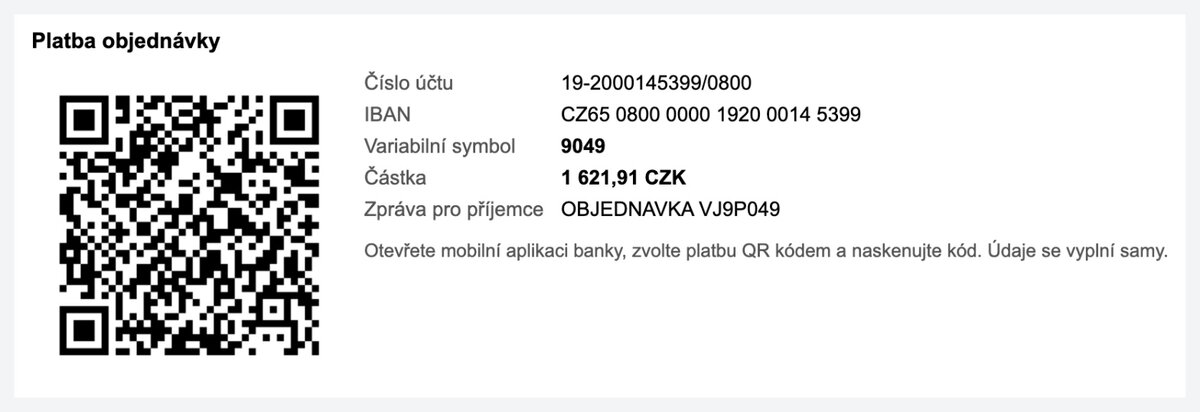
| Show payment details as text | Yes | Show the account number, variable symbol, amount and message next to the QR code for manual entry. |
| Debug mode | No | Verbose logging to administrator/logs/semaqr.php. Errors are always logged. |
| Logos, Payment information | – | Standard VirtueMart fields: logos shown with the method and text appended to the method name in the order. |
| Fees and tax | – | Fixed, minimum and percentage fee and a tax rule, as with other methods. |
The QR block has no background or text colour of its own – it inherits them from the shop template, so it works with both light and dark templates. Only the area under the QR code itself is white so that it scans reliably.
10. How customers pay
- The customer selects the QR payment in the cart and completes the order.
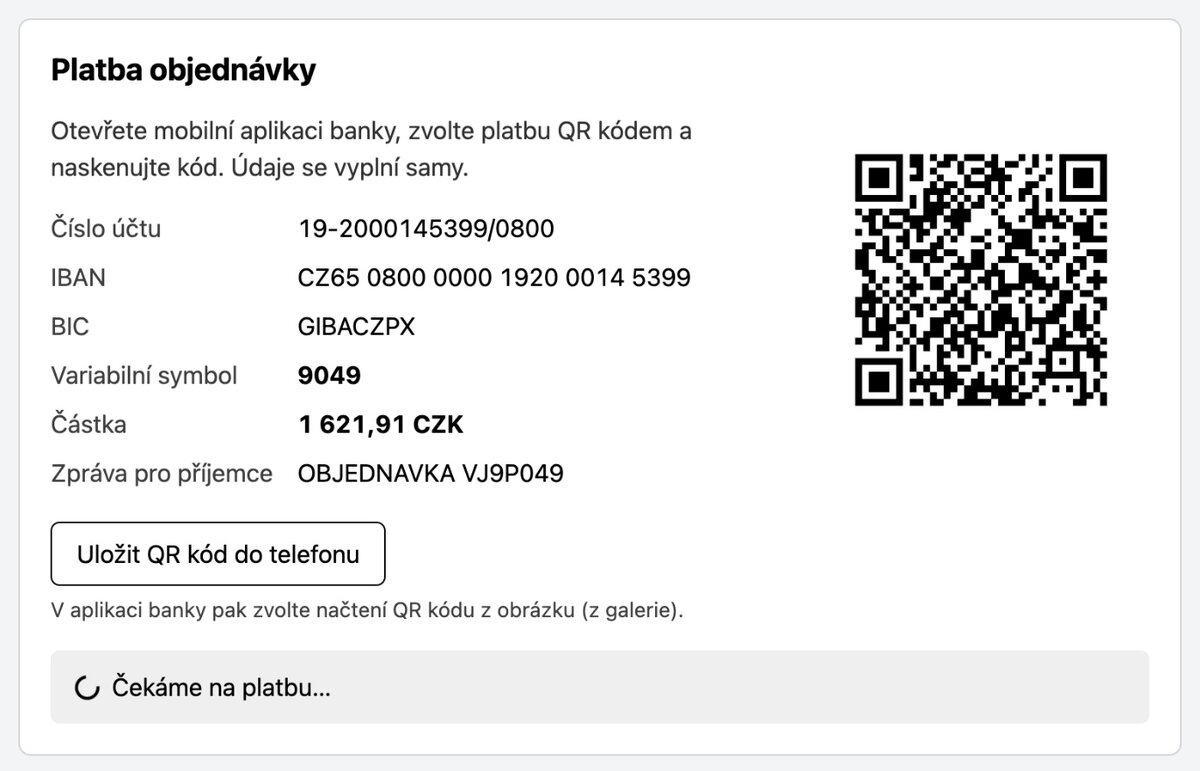
- The thank-you page shows the QR code, the payment details and the status Waiting for payment…. The customer opens the banking app, chooses QR payment and scans the code – account, amount, variable symbol and message are filled in automatically.
- When shopping on a phone, the customer saves the QR code with Save QR code to phone and loads it from the image in the banking app. On iPhone the share sheet opens, where they choose to save the image.
- The QR code is also in the confirmation e-mail and in the order detail in the customer’s account, so they can pay later.
- Once cron matches the payment, the thank-you page (if still open) shows Payment received ✓ and VirtueMart sends the status change e-mail according to its settings.
If you change the total of an order that is still awaiting payment, the QR code is recalculated to the new amount the next time it is displayed.
11. Payment matching
Each incoming payment is looked up by its variable symbol among the orders paid with this method. Then the amount and currency decide:
| Situation | What happens |
|---|---|
| Amount matches (within tolerance) | The order moves to Status when paid, the received amount is written to the history. |
| Underpayment | The order moves to Status when underpaid. On the website and in the e-mail the customer sees a QR code for the remaining amount. Further payments add up; once fully paid, the order is paid. |
| Overpayment | The order is paid, the overpaid amount is written to the history and the administrator gets an e-mail. |
| Payment in another currency | Not matched, the administrator gets an e-mail to review it. |
| Payment for a cancelled order | Not matched, the administrator gets an e-mail to review it. |
| Second payment for a paid order | Not matched as a duplicate, the administrator gets an e-mail to review it. |
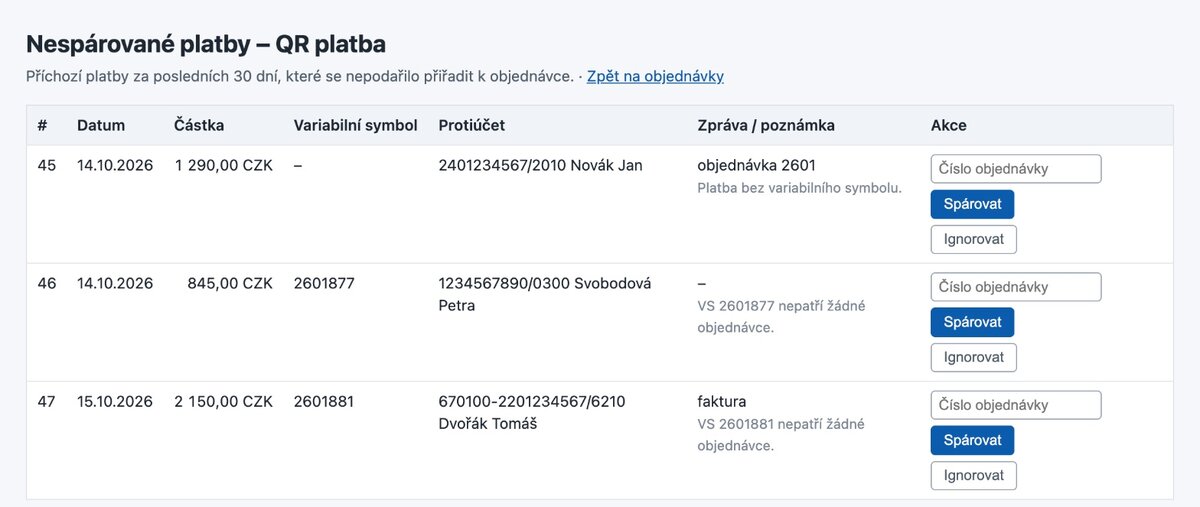
| No variable symbol or an unknown one | Stays in the list of unmatched payments and appears in the daily digest. |
The plugin does not change payments unrelated to the shop – it only lists them as unmatched. The payer’s name and the bank data are stored for the administration only and never reach the website.
12. Payments in the order administration
In the order detail (VirtueMart > Orders) the SemaQR payment block shows the payment state, paid amount, date and transaction ID, plus three actions:
- Check payment now – immediate download from the bank, no need to wait for cron. The 30-second Fio API limit applies.
- Mark as paid – manual confirmation without a bank payment (e.g. the money arrived on another account). The order total is recorded as the paid amount and the history notes who marked it.
- Unmatched payments (N) – incoming payments from the last 30 days that could not be assigned. For each one you can:
- Match it by entering an order number – the same currency and tolerance rules apply as for cron;
- Ignore it – it disappears from the list and the digest.
A link to the unmatched payments is also in the payment method form.
13. E-mail notifications
The address in Notification e-mail (empty = shop e-mail) receives:
- Bank connection error – after the set number of consecutive failed downloads (default 3). The next alert comes only after a successful connection and a new failure.
- Payment needs review – overpayment, payment in another currency, payment for a cancelled or already paid order. Each payment only once.
- Daily digest of unmatched payments – once every 24 hours, can be turned off.
If the account also receives payments unrelated to the shop (invoices, transfers), they appear in the digest every day. In that case turn the digest off – notices about payments needing review keep coming and unmatched payments remain available in the administration.
14. Updates and uninstallation
Updates arrive via System > Update like other extensions, provided the SemaHub update site has your Download Key (Download ID) from your account on Semakin.cz. The payment method settings are not changed by an update.
Uninstalling deletes the tables #__sema_qrpay_transactions and #__sema_qrpay_sync_state. VirtueMart’s table with the payment data of orders is kept, as is customary for VirtueMart payment plugins. Remove the cron job on your hosting before uninstalling.
15. Troubleshooting
The method does not appear in the cart
- The SemaQR for VirtueMart plugin is not enabled (it is disabled after installation).
- The IBAN is invalid – the administration reports it after the method is saved.
- The cart currency is not among the Allowed currencies (empty = CZK only).
- A VirtueMart restriction of the method applies (country, amount, shopper group).
The customer did not receive the e-mail with the QR code
The Status after order creation is not among the statuses in which VirtueMart e-mails the customer (chapter 3).
The payment is in the account but the order was not updated
- Cron is not running – open the webcron URL in a browser. It must return
200;403means a wrong key (on Forpsi then re-enable the job). - The payment has a different or no variable symbol – find it under Unmatched payments and match it manually.
- The payment arrived in another currency or for a cancelled order – the administrator received a review e-mail.
- Fio has not booked the payment yet – between banks this can take until the next business day.
- Try Check payment now in the order; details are logged in
administrator/logs/semaqr.php(enable debug mode for more).
Checking reports “The bank allows one request per 30 s”
The Fio API accepts one request per 30 seconds per token. Try again shortly; regular cron handles it by itself in the next run.
The method form warns about a missing safe path
Set the Safe path in VirtueMart Configuration (Shop) and save the method again so that the token is stored encrypted.
The daily digest arrives every day with unrelated payments
The account also receives payments outside the shop. Turn the digest off (Daily digest of unmatched payments = No) or ignore the unneeded payments in the list.
How it works in practice