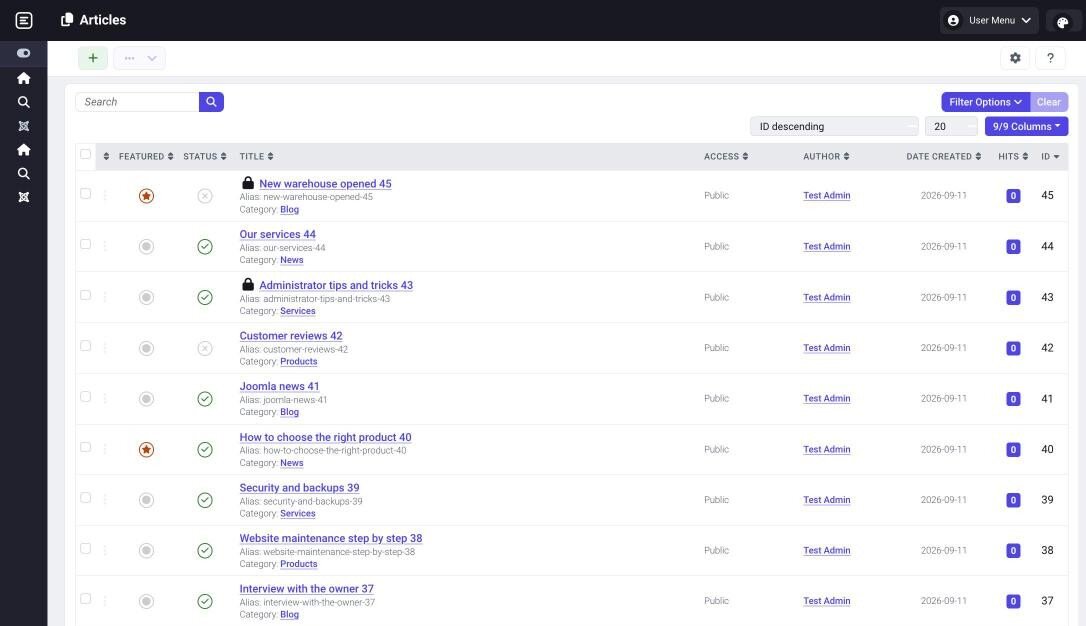
A compact administrator template for Joomla 5.3 and newer and Joomla 6, built on the default Atum template. More content fits on the screen, every user picks light or dark mode, a colour set and the display size, and the login page carries your logo.
| Requirement | Version |
|---|---|
| Joomla | 5.3 and newer, 6 |
| PHP | 8.1 and newer |
| Administrator mode | light, dark or follow the system |
| Current version | 1.2.2 |
1. Before you start
- The package contains the SemaAdmin administrator template and the System - SemaAdmin plugin, which stores the appearance choice in the user profile.
- The template is based on Atum, so the menu, module positions and page structure stay the same. It does not change Joomla files; everything lives in the template and plugin folders.
- Atum stays installed. You can set it back with one click in System → Administrator Templates.
- Running a VirtueMart shop? The SemaAdmin for VirtueMart package contains this template and draws VirtueMart in the same look. You do not need both packages.
2. Installation and updates
Installation: in the administrator open System → Install → Extensions and upload the pkg_semaadmin-<version>.zip file downloaded from semakin.cz. The plugin enables itself.
Make it the default: open System → Administrator Templates and click the star in the Default column of the SemaAdmin - Default style. After reloading the page the administrator runs in the new template.
Sites with SemaAdmin for VirtueMart: if the VirtueMart package already manages the template on the site, the installation stops and nothing on the site changes. The template is updated with the VirtueMart package.
Download key: enter it in System → Update → Update Sites, in the Download Key field of the SemaAdmin entry. Joomla then offers new versions by itself.
Updates keep the style settings and the users' choices. They do overwrite the template files, see Custom CSS.
Uninstalling: first set Atum as the default, then filter System → Manage → Extensions by type Package and uninstall SemaAdmin.
3. Appearance menu
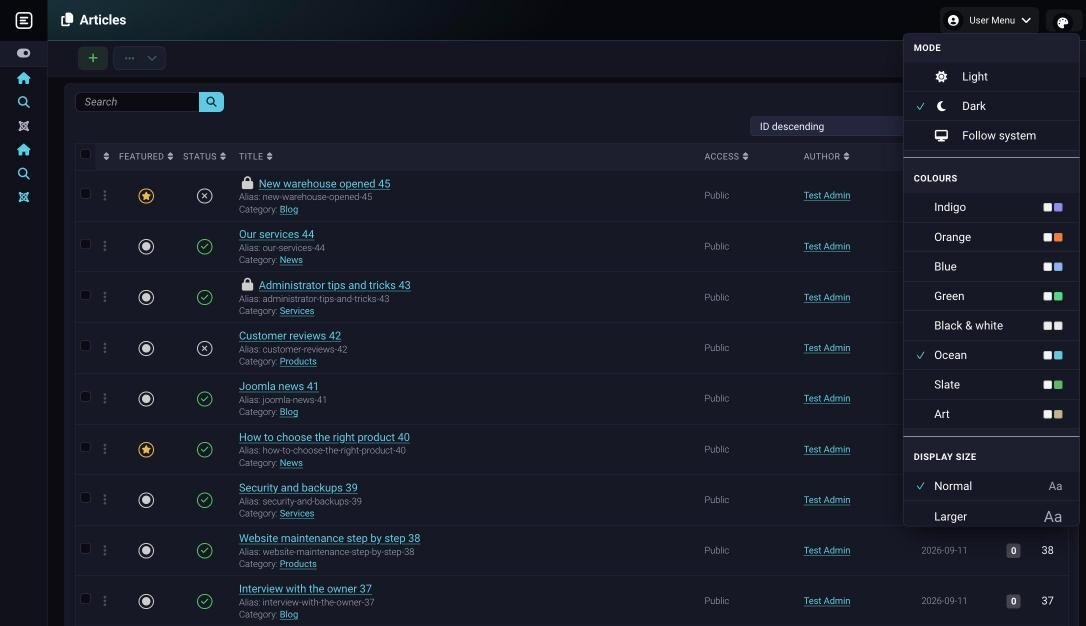
The palette icon on the right of the header opens the Appearance menu, where every user picks:
| Option | Choices |
|---|---|
| Mode | light, dark, follow system |
| Colours | Indigo, Orange, Blue, Green, Black & white, Ocean, Slate, Art |
| Display size | normal, larger (135%), largest (175%) |
The choice applies immediately and is stored in the user profile, so it follows the user to all their devices. The display size scales the whole administrator, not just the text. The content of the TinyMCE editor is not scaled.
On the login page the menu offers only the mode. To turn the menu off for everybody, switch off Users may switch appearance (see Colours); only the template settings apply then.
4. Colours
Template settings: System → Administrator Templates → SemaAdmin - Default, Colours tab. The values are the defaults for all users who have not picked anything in the Appearance menu.
| Option | Default | Description |
|---|---|---|
| Colour Preset | Indigo | Tint of the sidebar and header: Indigo, Slate / blue, Slate / teal, Graphite / violet. In dark mode it also tints surfaces and cards. |
| Colour combination | Indigo | Colour of links, buttons, active items and focus outlines. Every set has a light and a dark variant and we measured text contrast in all of them. Slate and Art also recolour the sidebar and header. |
| Colour Scheme | Follow OS settings | Light, dark, follow the system, or disabled. Disabled hides the mode choice in the Appearance menu. |
| Users may switch appearance | Yes | Shows the Appearance menu in the header. |
| Set Colour to Monochrome | No | Administrator in shades of grey, taken over from Atum. |
5. Layout
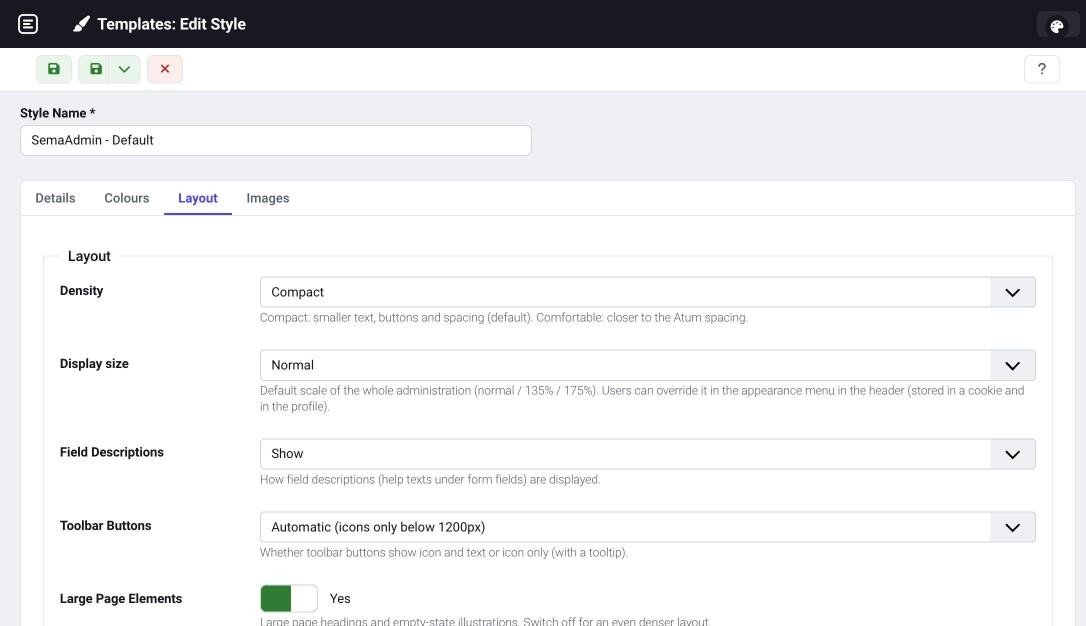
Layout tab of the template settings.
| Option | Default | Description |
|---|---|---|
| Density | Compact | Compact: smaller text, buttons and spacing. Comfortable: closer to the Atum spacing. |
| Display size | Normal | Default scale of the whole administrator. Users change it in the Appearance menu. |
| Field Descriptions | Show | Help texts under form fields: show, hide, or show on hovering the (i) icon. Hidden descriptions are still read by screen readers. |
| Toolbar Buttons | Automatic | Below 1200 px icons only with the label on hover, or always icon and text, or always icons only. On mobile the text is always shown. |
| Large Page Elements | Yes | Large page headings and empty-state illustrations. Switch off for an even denser layout. |
| Login Sidebar | No | Modules of the sidebar position (help and support) next to the login form. |
6. Logos and the login page
Images tab of the template settings.
| Option | Recommended size | Where it appears |
|---|---|---|
| Login Logo | 70 × 70 px | Above the login form |
| Brand Large | 150 × 30 px | Top left of the header |
| Brand Small | 20 × 20 px | In the header when the sidebar is collapsed |
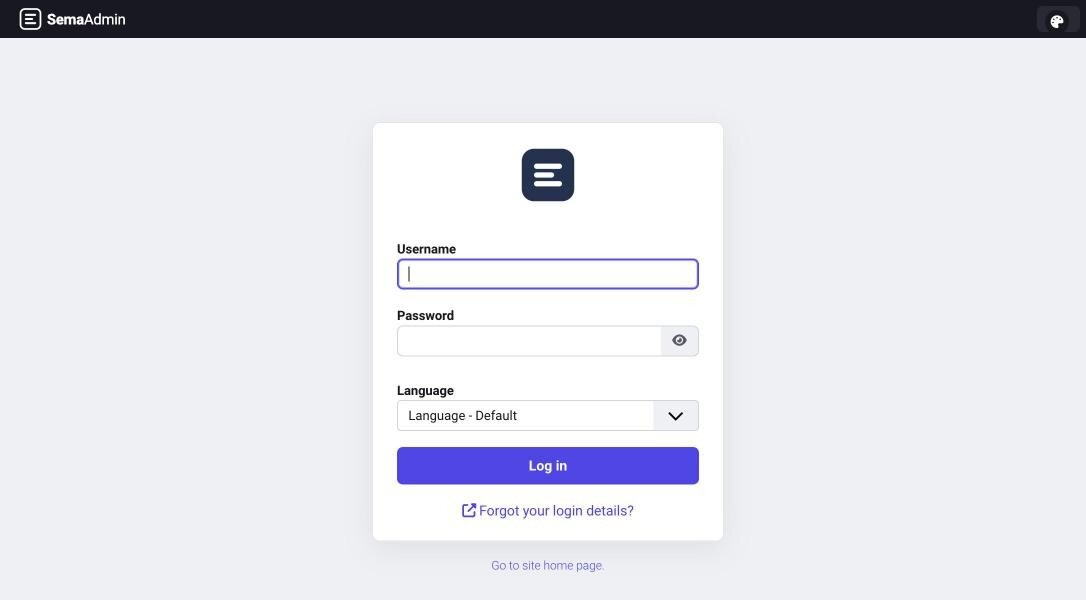
Without your own logo the SemaAdmin logo is shown. Give every logo a description for screen readers, or tick No Description when the logo is only decorative.
The login page is a compact card in the centre without a large background image. It takes its colours from the chosen colour combination.
7. Custom CSS
The file media/templates/administrator/semaadmin/css/user.css is loaded last, as in Atum. Colours and sizes are CSS variables, for example:
| Variable | Meaning |
|---|---|
--accent | Accent colour (buttons, active items) |
--sema-link | Link colour |
--sema-font-size | Base font size |
--sema-sidebar-width | Sidebar width |
--sema-table-py | Table row height |
A template update overwrites the whole CSS folder. Back up user.css before updating and put it back afterwards.
8. Compatibility
| Environment | Status |
|---|---|
| Joomla 6.1, PHP 8.2 to 8.5 | Verified, supported |
| Joomla 5.4, PHP 8.2 to 8.5 | Verified, supported |
| Joomla 5.3, PHP 8.1 | Supported |
| Joomla 5.2 and older, Joomla 4 | Not supported |
Extensions with their own administrator look keep it. VirtueMart draws its administrator with its own template; the SemaAdmin for VirtueMart package shows it in the same look as SemaAdmin. Right-to-left (RTL) languages follow the Atum template.
9. Troubleshooting
The administrator looks the same as before. The template is not the default. Set it in System → Administrator Templates.
The Appearance menu is missing in the header. Users may switch appearance is switched off in the template settings.
The appearance choice does not follow me to another computer. Check that the System - SemaAdmin plugin is enabled.
The installation says SemaAdmin is part of the SemaAdmin for VirtueMart package. You already have the template on the site and it is updated with that package. You do not need the standalone package.
My custom styles disappeared after an update. Put back your user.css backup, see Custom CSS.
Another problem? Write to us at
How it works in practice