SemaSMS sends SMS from your Joomla site through the BulkGate and SMSbrána.cz gateways: VirtueMart order notifications by status, manual SMS from the order detail and SMS campaigns to AcyMailing lists. All messages go through one queue with retries, a backup gateway and delivery reports.
| Joomla | PHP | Gateways | Current version |
|---|---|---|---|
| 5.4+, 6.x | 8.2+ with sodium | BulkGate, SMSbrána.cz | 1.1.2 |
1. Requirements
- Joomla 5.4 or newer, or Joomla 6
- PHP 8.2 or newer with the
sodiumextension (encryption of gateway credentials) - a BulkGate or SMSbrána.cz account with API access
- a hosting cron job, or the Joomla Task Scheduler
- VirtueMart 4 – only for order SMS (optional)
- AcyMailing – only for SMS campaigns (optional)
Languages: Czech, Slovak and English – the administration and the texts SemaSMS prefills.
2. Getting started
- Install the SemaSMS for Joomla package (System → Install → Extensions). It installs the component and the System - SemaSMS, Task - SemaSMS and VM Extended - SemaSMS plugins. On first install the plugins are enabled automatically, the VirtueMart plugin only if VirtueMart is installed.
- Components → SemaSMS → Gateways: add a gateway, fill in the access details and click Send test SMS (chapter Gateways).
- In the Options fill in the Cron URL token and set up a cron job, or create the scheduler task SemaSMS - process queue (chapter Queue and cron).
- For delivery reports and STOP opt-outs fill in the Webhook key and enter the address from the Dashboard in the gateway's portal (chapter Delivery reports and inbound SMS).
- Create Templates and use VirtueMart rules to decide which one is sent for which order status.
- For campaigns, set the AcyMailing phone field in Options → Campaigns.
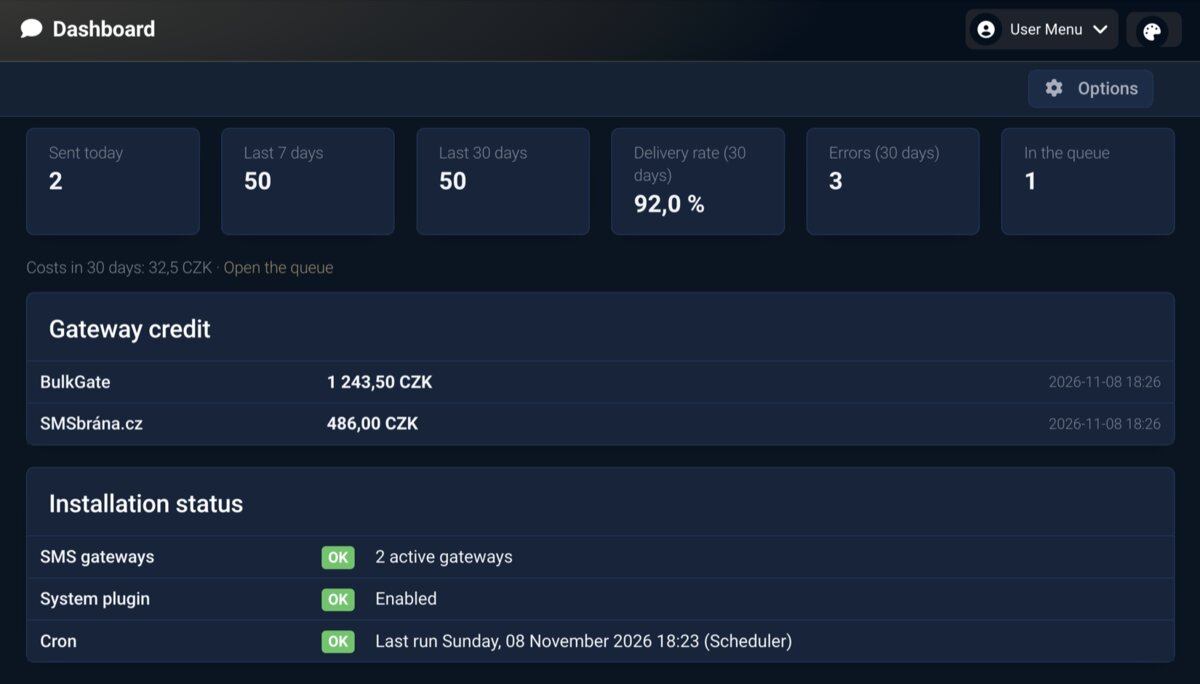
The Installation status card on the Dashboard shows what is still missing: an active gateway, enabled plugins and the last cron run.
3. Gateways
Components → SemaSMS → Gateways are the accounts SMS are sent through. You can have more than one.
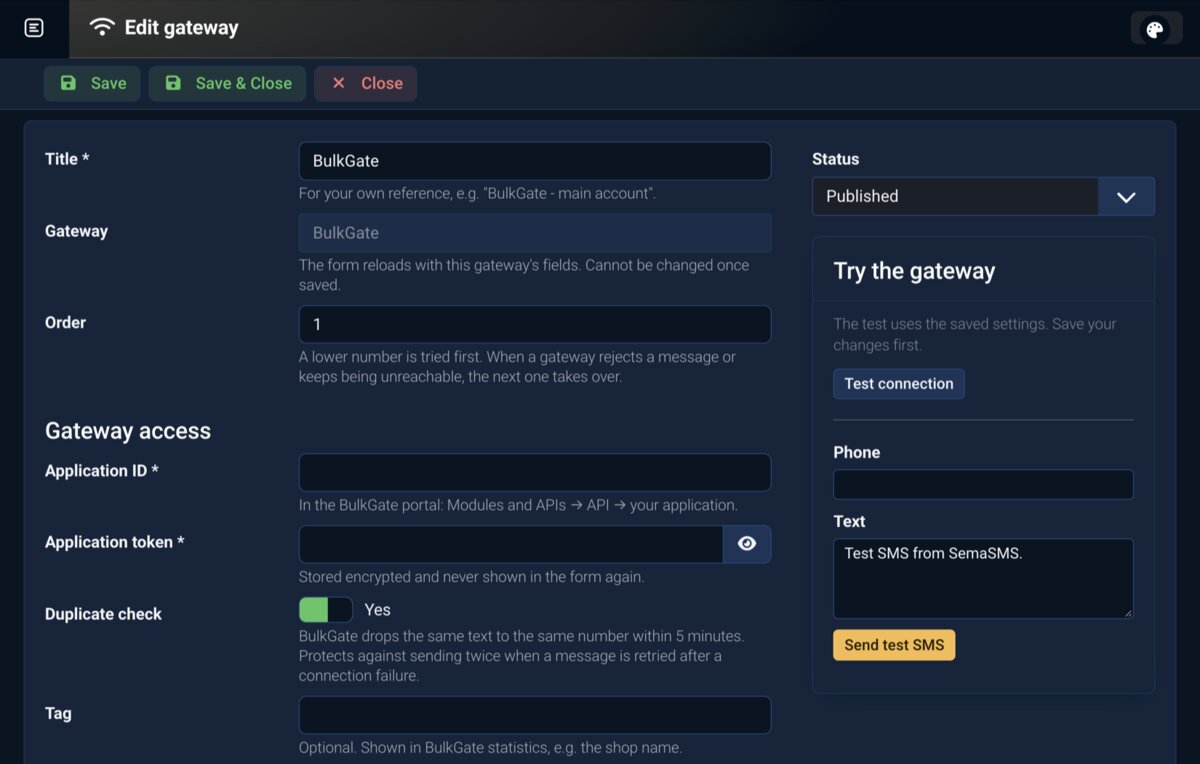
- Title – for your own reference, e.g. “BulkGate – main account”.
- Gateway – BulkGate, SMSbrána.cz or Test (sends nothing). After you choose, the form reloads with that gateway's fields. Once saved, the type cannot be changed.
- Order – a lower number is tried first. If a gateway rejects a message or is repeatedly unavailable, the next one takes over.
Passwords and tokens are stored encrypted and never shown in the form again. Leave a field with a stored value empty unless you are changing it.
BulkGate
- Application ID and Application token are in the BulkGate portal under Modules and APIs → API → your application.
- Duplicate check – BulkGate drops the same text to the same number within 5 minutes. It prevents double sending when a message is retried after a connection failure.
- Tag – optional, shown in BulkGate statistics.
SMSbrána.cz
- API login and API password are in the SMSbrána portal under API → API settings. The API must be active and the server's IP address allowed.
- Authentication variant – if the connection test with the default variant fails on login, try the other one.
Countries and sender
With no rows the gateway sends to all countries with the account's default sender. With rows it sends only to the listed countries; the * row covers all others. For each country choose the Sender type (system number, text sender, own verified number…) and the Sender. A text sender or own number must be approved in the gateway's portal.
Opt-out by replying STOP only works with a numeric sender that can be replied to. A text sender cannot receive replies.
Try the gateway
Below the form are Test connection (also shows the credit) and Send test SMS to a number you enter. The test uses the saved settings – save your changes first.
The Test (sends nothing) gateway only records the message as sent, or, depending on Behaviour, returns an error or an exhausted quota. Use it to try retries and failover to another gateway. If it is the only active gateway, the Dashboard warns that customers will receive nothing.
4. Templates
Components → SemaSMS → Templates are SMS texts with variables.
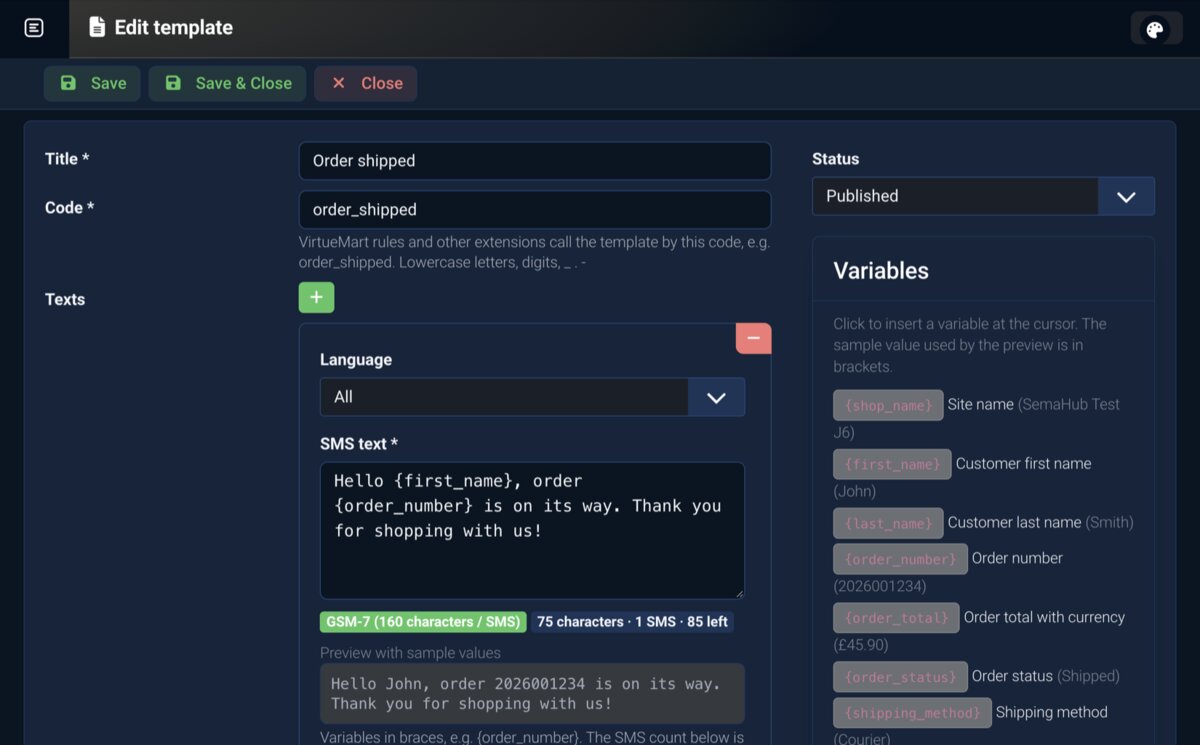
- Code – the name VirtueMart rules and other extensions use to call the template, e.g.
order_shipped. Lowercase letters, digits and_ . -. - Texts – one row per language. The text for All languages is used when the order's language has no text of its own.
- Strip diacritics – removes accents, including from inserted values (the customer's name). One SMS then holds 160 characters instead of 70.
Variables are written in curly braces and inserted by clicking in the Variables panel:
| variable | inserts |
|---|---|
{shop_name} | site name |
{first_name}, {last_name} | customer's first and last name |
{order_number} | order number |
{order_total} | order total with currency |
{order_status} | order status |
{shipping_method} | shipping method |
{tracking_number}, {tracking_url} | parcel number and tracking link |
Preview with sample values shows the character and SMS count and the encoding: GSM-7 (160 characters per SMS) or Unicode (70 characters). When the text switches to Unicode, the preview lists the characters that caused it.
Watch out for
- A template with an unknown variable is not sent. Saving warns about it.
- Neither VirtueMart nor carrier extensions pass the parcel number and tracking link to SemaSMS yet, so they stay empty. Leave them out of templates for now.
- Saving flags a text longer than the gateways accept. Shorten it or turn on Strip diacritics.
5. VirtueMart order SMS
Components → SemaSMS → VirtueMart rules decide when a customer gets an SMS.
- Order status – the SMS is sent when an order moves into the status, or when a new order is created in it.
- Template – the text is chosen by the order's language.
- Shopper group and Language – optional narrowing.
When several rules match a status, the most specific wins (group and language, then group, then language, then general) and only one SMS is sent. Among equally specific rules Ordering decides. An order gets at most one SMS per status, even if it returns to it.
Options → VirtueMart → Phone from address sets where the phone comes from: shipping address, falling back to billing, or billing only. A number without a calling code gets the code of the same address's country.
Rules are sent by the VM Extended - SemaSMS plugin, which must be enabled.
Manual SMS from an order
The VirtueMart order detail has a Send SMS button in the toolbar. The form prefills the order's phone; pick a template (filled with the order's data, the text can be edited) or write your own. The SMS goes to the queue as transactional and leaves straight away. The button is shown to users with the Send SMS permission.
6. SMS campaigns
Components → SemaSMS → Campaigns are bulk SMS to AcyMailing lists at a set time. They need AcyMailing installed and, in Options → Campaigns → AcyMailing phone field, the system name (namekey) of the custom field holding the phone (default telefon). Numbers without a calling code are treated as numbers of the default country.
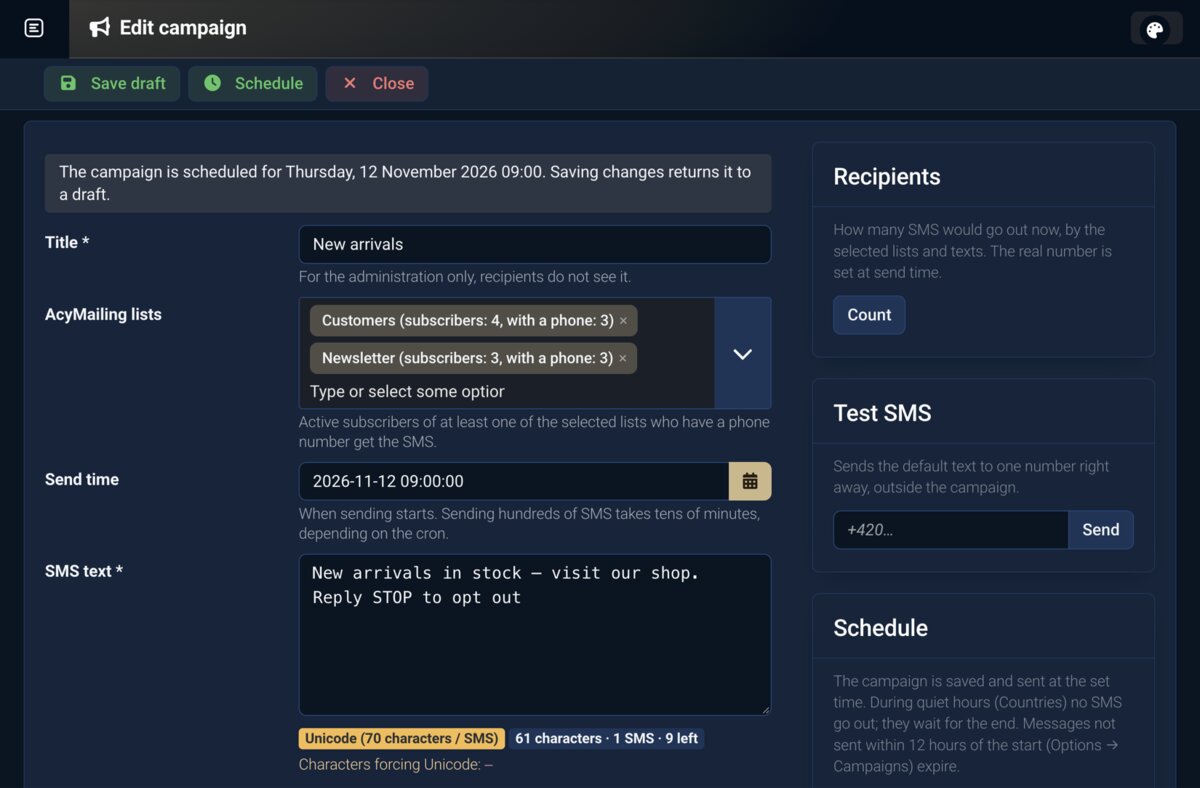
- New, fill in the Title (administration only) and choose the AcyMailing lists. Each list shows its subscribers and how many of them have a phone.
- Write the SMS text. The opt-out footer is prefilled from the Options; keep it in the text.
- Optionally SMS text in English – subscribers with English set in AcyMailing get this one.
- Tick I confirm the legal basis: the recipients consented to marketing messages, or they are your customers and the SMS concerns similar services.
- Count shows the recipients and SMS count and how many contacts drop out: no phone, invalid number, opted out (STOP), duplicate number.
- Test SMS sends the default text to one number straight away, outside the campaign.
- Set the Send time and click Schedule.
Recipients are loaded only at send time: whoever unsubscribes in AcyMailing or replies STOP in the meantime does not get the SMS. One number gets one SMS even if it is on several lists. Editing a scheduled campaign returns it to draft – schedule it again after the change. Sending hundreds of SMS takes tens of minutes depending on cron; the campaign shows progress and the result.
Quiet hours and validity
A campaign pauses during the recipient country's quiet hours and resumes when they end (chapter Countries). SMS that have not left within 12 hours of the start (Options → Campaigns → Campaign SMS validity) are dropped, so an invitation does not arrive after the event. Quiet hours do not apply to transactional SMS.
To stop a campaign in progress, use Cancel campaign. SMS that have not left yet will not be sent.
7. STOP opt-out
An inbound SMS that starts with a keyword from Options → Campaigns → Opt-out keywords (default STOP, ODHLASIT, case and accents ignored) opts the sender out of all campaigns. The number is added to Opted-out numbers and pending campaign SMS to it are cancelled. It still receives transactional SMS (order status).
This only works with a numeric sender (chapter Gateways) and with inbound SMS set up at the gateway (chapter Delivery reports and inbound SMS).
Components → SemaSMS → Opted-out numbers show the reason (STOP reply or Manual). Use Add to add a number by hand, with a note. A deleted number will receive campaigns again.
8. Queue and cron
Every SMS goes to the Queue. Transactional SMS (orders, manual) are sent right after the request that created them – the System - SemaSMS plugin does that. Retries, campaigns and anything that did not leave straight away are sent by cron.
One of these is enough:
- Cron URL – fill in the Cron URL token in Options → Cron. The full address is on the Dashboard; have the hosting cron call it every 1–5 minutes, e.g.
wget -q -O /dev/null "…". - Joomla scheduler – System → Scheduled Tasks → New → SemaSMS - process queue, interval 1–5 minutes. A scheduler triggered by site visits runs irregularly; triggering it from cron is more reliable.
Keep the cron address private. The token is changed in the Options; then update the address in the cron job.
Queue options
| option | default | meaning |
|---|---|---|
| Default number country | CZ | country for numbers without a calling code when the order does not determine it |
| Max. attempts | 5 | across all gateways; the wait between attempts is 1, 2, 4, 8… minutes, at most an hour |
| Switch gateway after temporary errors | 2 | after this many outages in a row the next gateway takes over; after a permanent gateway error immediately, after a number or text error not at all |
| Transactional message validity (hours) | 24 | an older unsent message expires – a late order SMS is more likely to confuse the customer |
| Run time limit (s) | 20 | keep 20 s or less on shared hosting |
| Batch size | 50 | how many messages are loaded from the queue at once |
When a gateway reports an exhausted quota (hourly or daily limit), it rests until the end of the run and messages wait for it without using up attempts. Transactional messages move to another gateway straight away.
Queue list
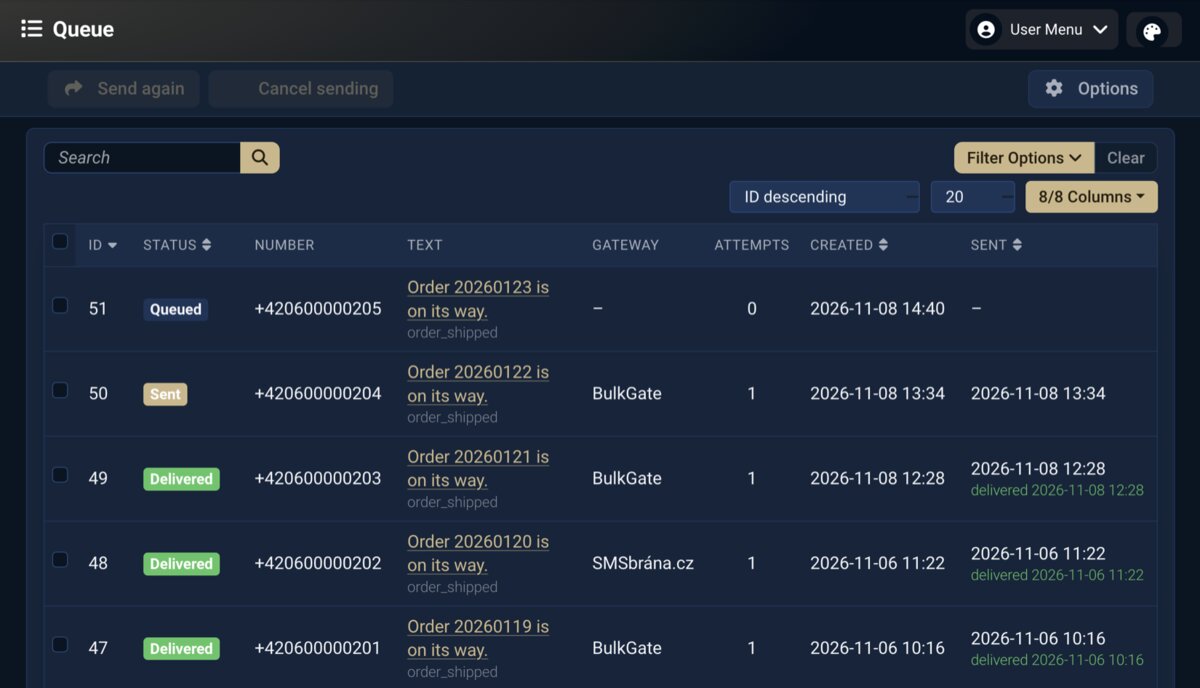
The list shows each message's status (Queued, Sending, Sent, Delivered, Failed, Expired, Cancelled), gateway, number of attempts and time. The message detail has the encoding, number of parts, price and the history of attempts and delivery reports. Send again works on failed, expired and cancelled messages, Cancel sending on queued ones.
9. Delivery reports and inbound SMS
Gateways send delivery reports and inbound SMS (STOP replies) to a site address with a secret key.
- In Options → Webhooks and log fill in the Webhook key (letters and digits).
- The address for each gateway is on the Dashboard, card Webhooks (delivery reports).
- Enter it in the gateway's portal: BulkGate Application → Settings → Web hooks, SMSbrána Push settings.
Without webhooks SMS are sent normally, they just stay Sent instead of Delivered and STOP does not work. Keep log (days) (default 90) sets how long the history of attempts and delivery reports is kept; messages in the queue stay.
10. Countries
Components → SemaSMS → Countries are rules by the recipient's country. CZ (+420) and SK (+421) are created on install.
- Country – ISO code, e.g. CZ. The country from the order address is matched against it.
- Calling code – without “+”, e.g. 420. Numbers written without a calling code get it from the address country.
- Time zone – quiet hours are calculated in it.
- Quiet hours From – To and All weekend – apply to campaigns only. The window can span midnight; the default is 20:00–08:00.
A number from a country that is not listed needs the international calling code in the order.
11. Dashboard
Components → SemaSMS → Dashboard shows SMS sent today, in 7 and 30 days, delivery rate and errors over 30 days, messages in the queue, costs over 30 days and gateway credit (loaded by cron). It also shows the cron address, the webhook addresses and the Installation status, which warns about a disabled plugin, a missing gateway or cron that has not run for more than 30 minutes.
12. Troubleshooting
An order SMS did not arrive. Check the Queue. If the message is not there: there is no rule for that status, the order has no phone, or the VM Extended - SemaSMS plugin is disabled. If it is Queued, cron is not running or the System - SemaSMS plugin is disabled. If it is Failed, the reason is in the message detail.
A campaign sent fewer SMS than the list has. The campaign result breaks down contacts with no phone, an invalid number, opted out and duplicates. Check that the AcyMailing phone field is the correct namekey.
Messages wait at a gateway with an exhausted quota. The gateway rests and tries again (BulkGate hourly limit 15 minutes, daily 60 minutes). Raise the quota in the gateway's portal or add another gateway.
STOP did not opt anyone out. The campaign went from a text sender that cannot be replied to, or the gateway has no webhook address for inbound SMS.
The SMSbrána connection test fails on login. Switch the Authentication variant and check that the server's IP address is allowed in the SMSbrána portal.
How it works in practice